


As APE Season 1 comes to a close, email-registered users need to take specific steps to claim their earned APEX tokens. This comprehensive guide will walk you through the process of exporting your Privy wallet private key and claiming your rewards.
Understanding Your Options
APE Season 1 is ending, and if you've earned APE points, you have two choices:
Immediately redeem your points for APEX tokens and claim them now
Hold your points for future opportunities and benefits
If you're choosing to redeem now, the process varies depending on how you registered your Omni account.
Email Users Need Extra Steps
Users who registered with a standard EVM wallet address can claim directly by signing with their wallet. However, email-registered users need additional steps because:
Email registration creates an Omni account using a Privy wallet
You must export the private key from your Privy wallet
Import it into a standard wallet (MetaMask, Trust Wallet, etc.)
Only then can you sign the transaction to claim rewards
Let's walk through each step in detail.
Step 1: Export Your Privy Wallet Private Key
First, you'll need to access your wallet export feature in Omni.
Log in to Omni using your email address
Click your profile icon in the top-right corner
Select "Export Email Wallet"
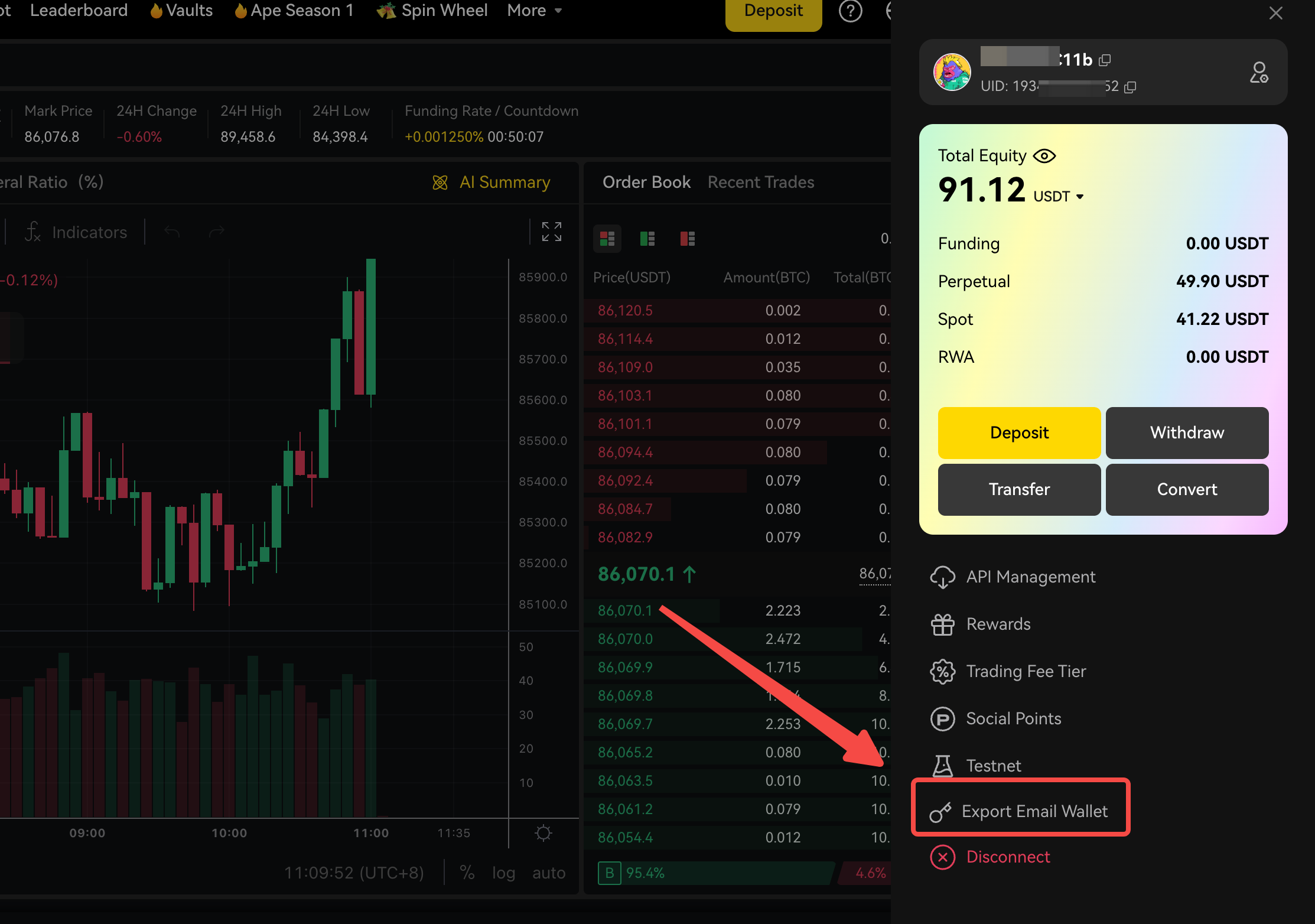
Step 2: Copy and Securely Store Your Key
Once you've accessed the export feature:
You'll see two options: "Copy key" and "Copy Phrase"
Click "Copy key" to copy your private key
Save it temporarily in a secure location on your local device
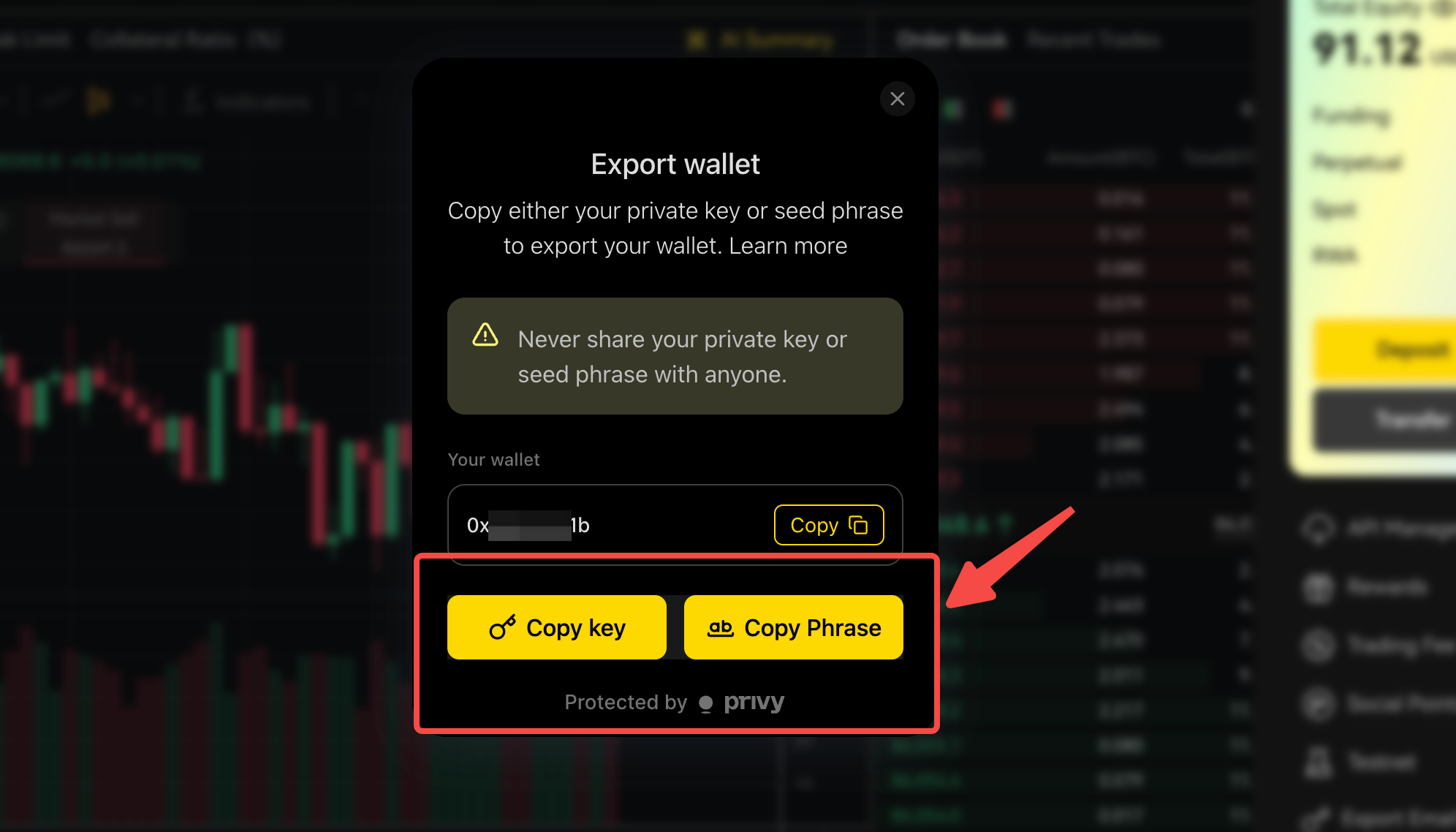
⚠️ CRITICAL SECURITY WARNING:
NEVER share this key with anyone
After successfully importing the wallet, delete the locally saved key immediately
Anyone with this key has complete access to your wallet
Key leakage could result in total loss of funds
Step 3: Import Your Key into MetaMask
Now you'll import the private key into a standard wallet. We'll use MetaMask as an example:
Open the MetaMask browser extension and log in
Click "Account" in the top-left corner
Select "Add Wallet"
Choose "Import an account"
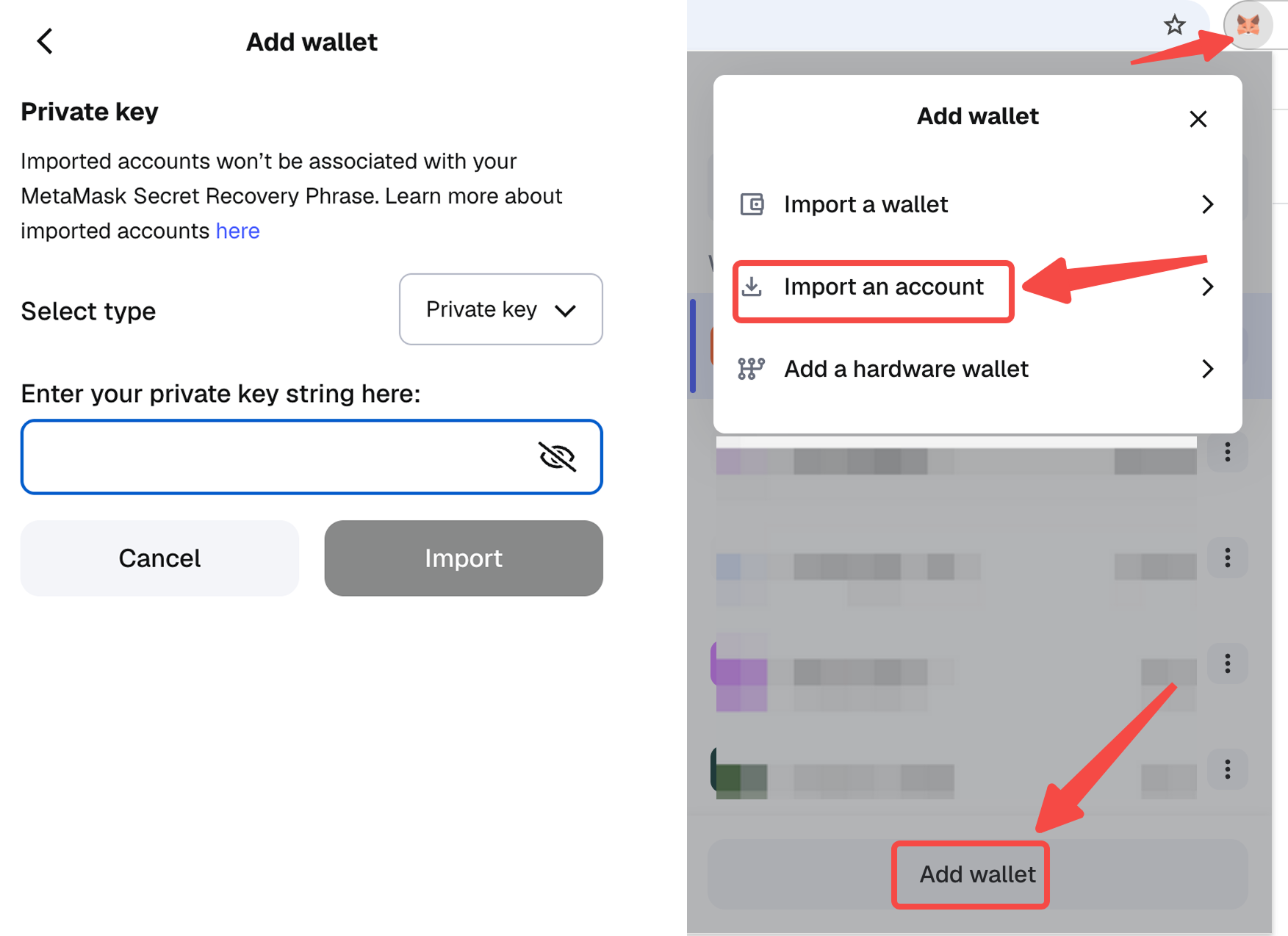
Select "Private key" as the import type
Paste the key you copied from Omni
Click "Import"

Once the import is complete, you'll immediately see your newly imported wallet address in MetaMask.
Step 4: Prepare Gas Fees on Arbitrum
Before claiming your rewards, you need ETH for gas fees:
APEX tokens for APE Season 1 are distributed on the Arbitrum network
Claiming requires signing an on-chain smart contract transaction
This consumes gas fees paid in ETH
Required amount:
Transfer a small amount of ETH on Arbitrum to your imported wallet
For 1-2 redemptions: approximately 3-5 USDT worth of ETH is sufficient
Step 5: Redeem APE Points and Claim APEX Tokens
With everything prepared, you can now claim your rewards:
Log out of your email-based Omni login
Log back in to Omni using your MetaMask wallet address
Navigate to the APE points redemption page
Proceed to redeem your APE points
Confirm the transaction in MetaMask to claim your APEX tokens
Viewing Your APEX Tokens
After successful claiming:
Check your APEX token balance on Arbitrum in MetaMask
If APEX doesn't appear automatically, manually add the token
APEX Token Contract Address on Arbitrum:
0x61A1ff55C5216b636a294A07D77C6F4Df10d3B56
Important Reminders
Security First: Delete your exported private key from local storage after importing
Gas Fees: Ensure you have enough ETH on Arbitrum before starting
Wallet Switch: Remember to log out of email login and use MetaMask login for claiming
Double-Check: Verify you're on the correct network (Arbitrum) when claiming
Troubleshooting Tips
Can't see APEX tokens? Manually add the token using the contract address above
Transaction failing? Check you have sufficient ETH for gas fees on Arbitrum
Wrong wallet showing? Ensure you've selected the imported account in MetaMask
Can't export wallet? Make sure you're logged in with the email account, not a wallet
Conclusion
While email-registered users need a few extra steps to claim their APE rewards, the process is straightforward when followed carefully. The most critical aspects are maintaining security of your private key and ensuring you have the necessary gas fees on Arbitrum.
Remember, you can also choose to keep your points for APE Season 2 if you prefer to wait for potentially higher multipliers. The choice is yours!
Need Help? If you encounter any issues during this process, reach out to the ApeX support team through official channels on Discord or Telegram.
Stay Safe: Never share your private keys or seed phrases with anyone claiming to be support. Official support will never ask for these.
Disclaimer
Cryptocurrency investments are subject to high market risk and volatility. Please conduct your own research and invest cautiously.
Website: https://www.apex.exchange
Twitter: https://twitter.com/OfficialApeXdex
Telegram: https://t.me/ApeXdex
Discord: https://apex.exchange/discord